
Events and e-tickets
How to register for events, use e-tickets, and check in at Society AI activities.
1. Browse the event calendar
The Events page lists upcoming programs, plus search and these filters: My events, Online, Offline, Hybrid, and Finished. Everyone, including free accounts, can follow the schedule on the calendar.
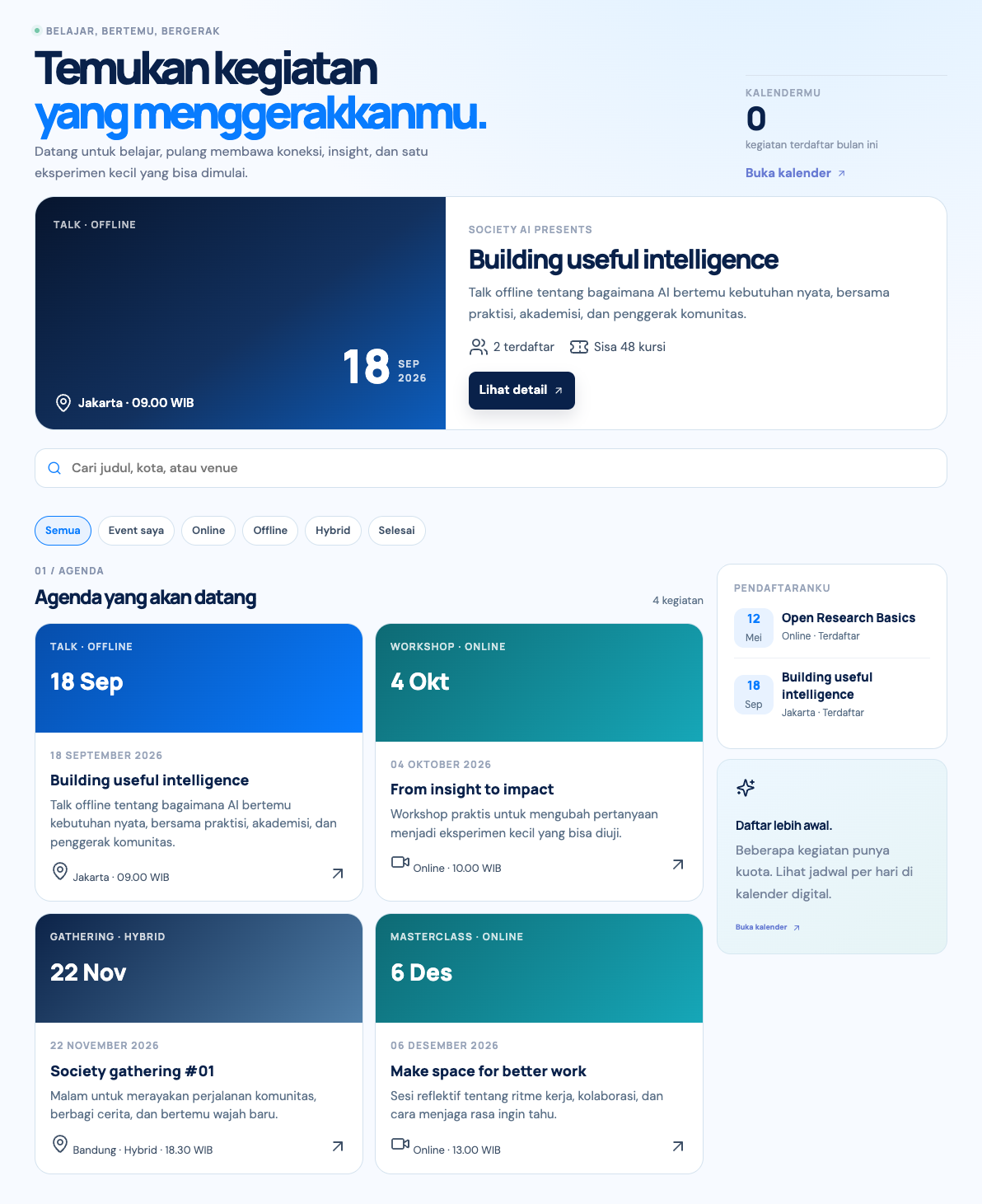
To register for an event and receive materials or a webinar link, you need Active member status.
2. Event details and registration
On the event page you see the description, session list, speakers, place, and the registration panel.
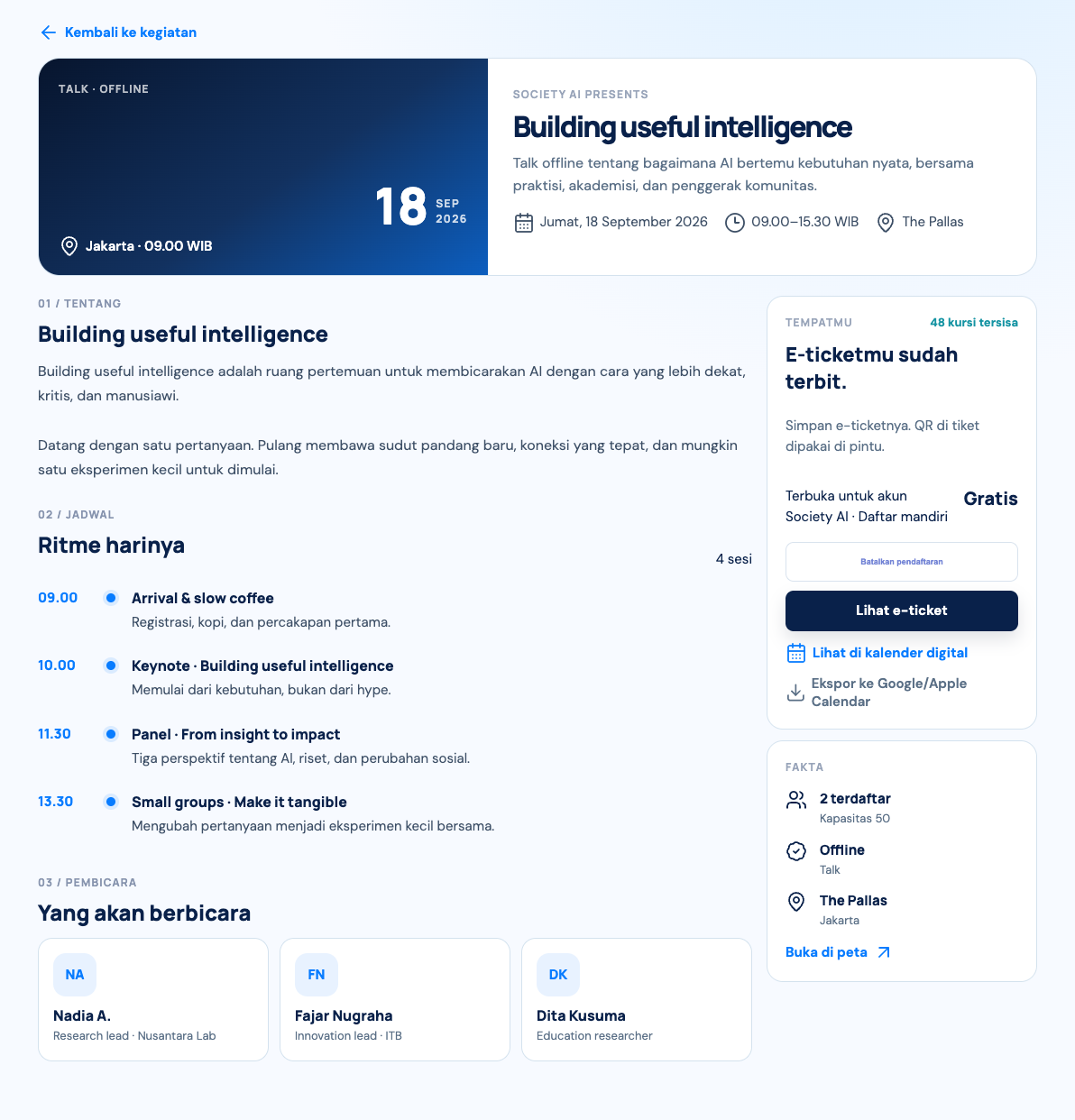
These statuses can appear after you register:
- Registered. Registration succeeded and the official e-ticket is issued at once.
- Pending approval. The event needs a review by the organizers.
- Waitlist. The main quota is full; a seat is assigned if someone cancels.
- Membership required. The event is only for active members.
- Invite only. A closed event reached through an invitation link.
- Closed. Finished or cancelled events no longer accept registration.
3. E-ticket wallet
The E-tickets page groups tickets into Active, Finished, and Cancelled.
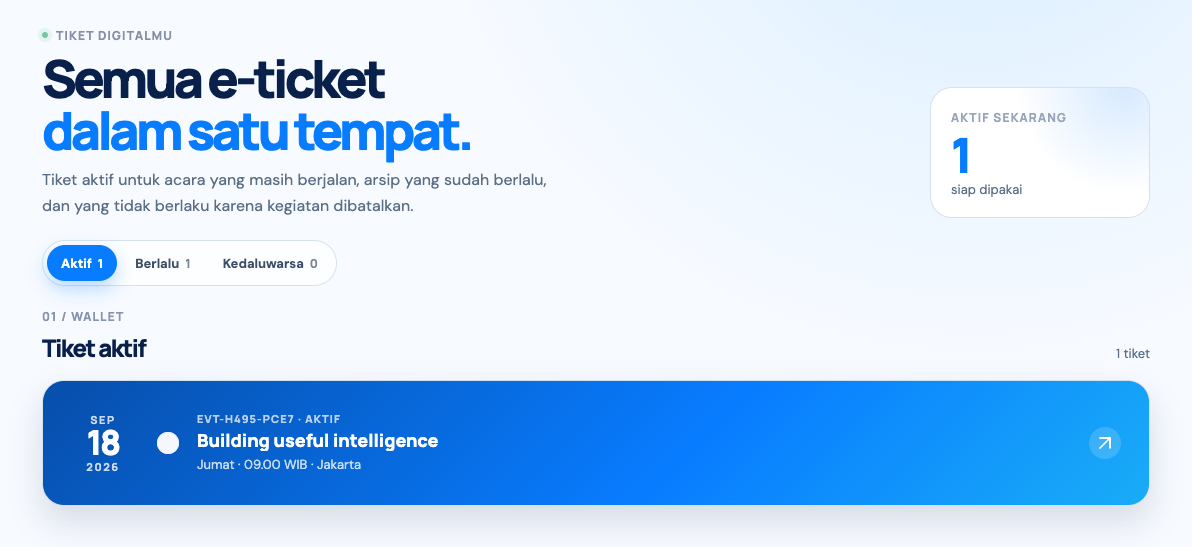
From an event you are attending, you can also export the schedule to a calendar with an ICS file.
4. Check-in on site
On site, show the e-ticket QR code to the organizers. For online sessions, the access link opens from the event page after your e-ticket is issued.