
Client ID and secret
How to ask for keys, where they show up, app types, URL rules, and how to replace them.
What you get
| Name | Example | Can others see it? |
|---|---|---|
| Client ID | 43de9d59-3a37-4c4c-8baf-64501a227ce9 | Yes. It travels in the sign-in URL, so it is not a secret. |
| Client secret | •••••••••••• | No. Server only, in .env or a secret manager. Never in a repo, a group chat, or browser code. |
Apps without a server (SPA or mobile) only get a Client ID. They cannot keep a secret, so they rely on PKCE instead.
How to ask for keys
Teams with developer access create their own apps in the Developer Console, without waiting for an admin.
- No developer access yet? Email support@society-ai.org with the name of the service you're building. Once access is granted, the Console opens straight away.
- Open the Developer Console and create a project for your service. Invite teammates from the Team tab.
- Click New testing app. The Client ID and secret show up once in the Save this secret now box, and Copy .env prepares your
.env. - Once sign-in works with a tester account, open the app and click Ask for a production version. An owner or admin reviews it, and you get an email once it is decided.
- Once approved, click Create production key within 14 days. The production secret is shown only to you. Admins never see it.
Need an admin's help, or can't use the Console yet? Copy the template below and send it to the same address.
To: support@society-ai.org
Subject: Society AI sign-in app request - <service name>

Service name (shown on the sign-in page): Kelas Society AI
Service address: https://kelas.society-ai.org
Owner: <name>, <email>
App type: Has a server / No server (SPA or mobile)

Callback URLs, up to 5:
- https://kelas.society-ai.org/auth/callback

Back-channel logout URL:
- https://kelas.society-ai.org/auth/backchannel-logout

Member data needed (strike what you don't need):
- Name and language (profile)
- Email (email)
- Membership status (membership)
- Stay signed in past 15 minutes without the member present (offline_access)

Testing version as well? Yes
- Testing callback URL: http://127.0.0.1:8000/auth/callback
- Tester emails (up to 20): <email1>, <email2>
Two kinds of app
| Testing | Production | |
|---|---|---|
| Who can sign in | Only emails on the tester list, up to 20 | Every member with an active account |
| Callback URLs | https://…society-ai.org, or http://127.0.0.1:PORT and http://localhost:PORT | Only https://…society-ai.org or an approved domain |
| Back-channel logout | Optional | Required |
| Other members who try it | See "This app is still in testing" | - |
The kind cannot be changed after the app is created. To go live, click Ask for a production version on the testing app. You get a new production app with its own Client ID.
Callback URL rules
- It must match what your app sends exactly, including
https, the port, and any trailing slash. - It must be on a
society-ai.orgsubdomain or an approved domain, for examplehttps://kelas.society-ai.org/auth/callback. - Up to 5 URLs per app.
- No
#,*, spaces, or user names in the URL. localhostand127.0.0.1are for testing apps only, and must include a port.
Services on other domains, like pandawan.id, are registered first under Project → Domains in the Console. Once an owner or admin approves it, that domain and all its subdomains can be used, still over https.
Member data you can ask for
| Option in the panel | Scope | What it gives you |
|---|---|---|
| (always) | openid | A member ID (sub) that never changes |
| Name | profile | Name and preferred language |
email | Email and whether it is verified | |
| Membership status | membership | Status, member number, end date, and role |
| Stay signed in | offline_access | A refresh token, so your server can renew tokens without the member. Not available to apps without a server. |
Only ask for what you use. Every claim is described in the API reference.
For admins: where the keys show up
Teams with developer access manage their own apps in the Console. Admins grant developer access under Admin → Users, review production versions and domains under Admin → Requests, and revoke domains under Admin → Domains. For teams not using the Console yet, apps can still be created from the panel:
- Open Admin → Aplikasi Terhubung → Tambah aplikasi.
- Fill it in from the request email: kind (testing or production), name, callback URLs, back-channel URL, shared data, and testers.
- After saving, a box titled "Simpan secret ini untuk developer" shows the Client ID and Client secret, each with a copy button.
- The secret is shown in that box once. After the page closes nobody can see it again, admins included.
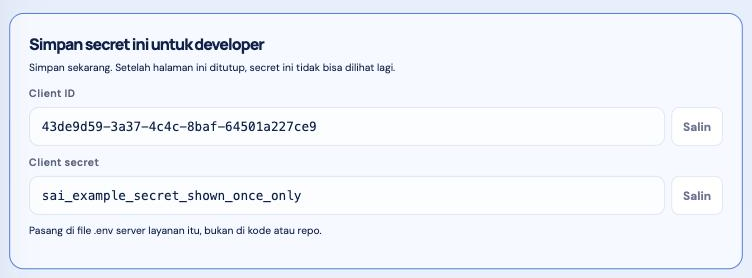
Send the secret straight to the person responsible for the app, for example in a private message they can delete after reading. Not in a group, an issue, or a shared document.
Replacing a secret
| Situation | What to do on the app page | Effect on members |
|---|---|---|
| Routine rotation, or the secret was lost but not leaked | Duplikat. You get a new Client ID and secret with the same settings. Deploy the new one, wait until "Terakhir dipakai" on the old app stops moving, then delete the old app. | No gap |
| The secret leaked | Buat secret baru. The old secret stops working at once. | Members cannot sign in until the new secret is on your server |
Changing the name, callback URLs, shared data, or testers keeps the same Client ID and secret. Change them on the app's page in the Console. For production apps, Duplicate and New secret ask for a new sign-in code if you last signed in more than 15 minutes ago.